How to Block AI Crawlers with Cloudflare WAF Without Losing SEO Traffic

These days, AI scrapers and large language model crawlers, like ChatGPT-User, ClaudeBot, and Perplexity, are constantly scraping entire websites without permission. This drains your server resources and wastes your bandwidth, while your website receives zero organic traffic or credit in return. To solve this, many developers quickly set up a blanket custom rule inside the Cloudflare WAF dashboard. The problem with this rough approach is that it often accidentally blocks legitimate SEO crawlers, like Googlebot and Bingbot, along with essential indexing files such as your /sitemap.xml. When this happens, Google Search Console throws a General HTTP error: 403, and your organic search rankings can drop significantly. Our main goal today is to build a production-grade, resilient Cloudflare WAF rule that blocks unverified AI scrapers and bots while allowing verified search engines and regular visitors to access your site smoothly.
Before diving into the configuration, you will need to get a few basic tools and permissions ready. First, you must have active Admin or Operator access to your domain's DNS and WAF dashboard inside Cloudflare. Second, you will need a terminal with curl installed, or a tool like Postman, along with access to your Google Search Console account for testing. Having a basic understanding of Cloudflare's Expression Builder and HTTP headers, particularly how the User-Agent header works, will make this setup much easier to follow.
To understand how edge layer blocking actually works, let us look at a practical real-world analogy. When a request travels toward your server, Cloudflare's edge network intercepts it before it ever reaches your origin server. Imagine a security guard standing at the front gate of your office building. If you tell the guard, "Do not let anyone in who claims to be a police officer," and a real police officer arrives showing an official ID badge, the guard would still block them based purely on spoken words. That is exactly what basic User-Agent blocking does. Our solution today teaches the security guard to ignore spoken claims and instead check for an official, verified ID badge, known as cf.client.bot, to easily separate real search engines from fake AI scrapers.
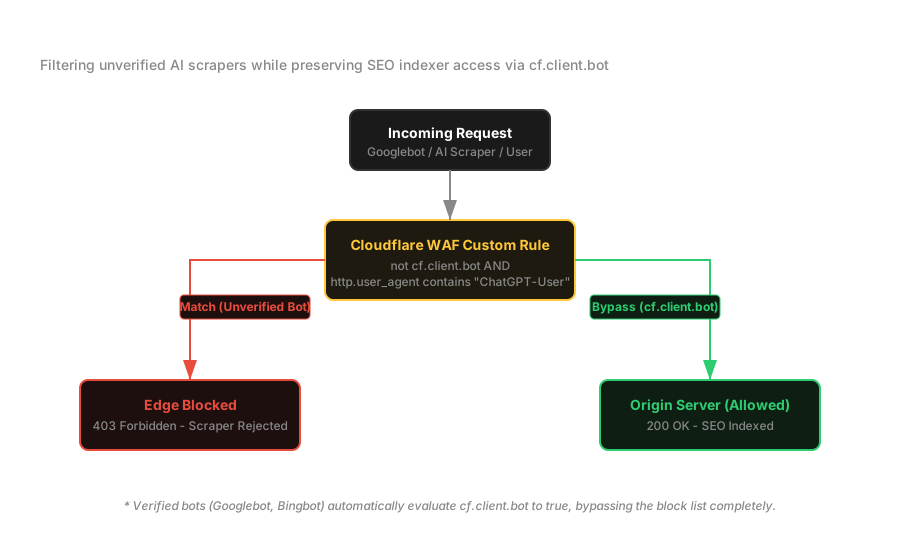
Let us jump into the step-by-step implementation. For the first step, log in to your Cloudflare dashboard and select your target domain. Navigate to the Security > Security rules section in the left sidebar and click on the Custom rules tab. Click the Create rule button to build a new rule, and give it a clear name like AI Crawl Control - Block Unverified Scrapers. Make sure to set the proper priority order so that this rule runs before your normal routing rules. For the second step, we will skip the visual Expression Builder and use the Advanced Editor to write code-level logic. Click the blue Edit expression link on the right side of the Expression Preview box. This opens an editor where you can write SQL-like syntax directly.
In the third step, we will inject the core AI bot blocking logic. Paste the expression below into the editor. This targets the User-Agents of known AI scrapers while keeping your /robots.txt file excluded from the block, allowing crawlers to read your site's indexing rules:
(http.request.uri.path ne "/robots.txt" and (http.user_agent contains "Applebot" or http.user_agent contains "archive.org_bot" or http.user_agent contains "ChatGPT-User" or http.user_agent contains "ClaudeBot" or http.user_agent contains "DuckAssistBot" or http.user_agent contains "MistralAI-User" or http.user_agent contains "OAI-SearchBot" or http.user_agent contains "Perplexity-User" or http.user_agent contains "PerplexityBot"))For the fourth step, we will upgrade this rule with verified bot protection. Relying solely on User-Agent strings is risky because clever scrapers can easily spoof their header to look like Googlebot. On the other hand, trying to manually whitelist Googlebot leaves room for human error. To fix this, we will integrate Cloudflare's native cf.client.bot field. Cloudflare automatically uses reverse DNS lookups and IP reputation to verify legitimate search engines behind the scenes. Add not cf.client.bot and to the beginning of your expression so the final code looks like this:
(not cf.client.bot and http.request.uri.path ne "/robots.txt" and (http.user_agent contains "Applebot" or http.user_agent contains "archive.org_bot" or http.user_agent contains "ChatGPT-User" or http.user_agent contains "ClaudeBot" or http.user_agent contains "DuckAssistBot" or http.user_agent contains "MistralAI-User" or http.user_agent contains "OAI-SearchBot" or http.user_agent contains "Perplexity-User" or http.user_agent contains "PerplexityBot"))Finally, select Block in the Action section at the bottom and click the Deploy button to make your new rule live.
Important
Why should you use not cf.client.bot?
If an unverified scraper hits your server using Googlebot in its User-Agent header, Cloudflare checks the backend to see if the IP address genuinely belongs to Google. If it does not match, cf.client.bot returns false, and the scraper is blocked instantly. This keeps your website completely safe from User-Agent spoofing attacks.
Now that your deployment is live, it is time for verification and testing. First, open your terminal and send a test request to your site using a fake AI bot User-Agent. You should immediately receive a 403 Forbidden response:
curl -I -A "Mozilla/5.0 AppleWebKit/537.36 (KHTML, like Gecko); compatible; ChatGPT-User/1.0; +https://openai.com/bot" https://yourdomain.com/sitemap.xmlNext, test the same URL using a normal browser User-Agent. This time, you should see a successful 200 OK status code:
curl -I -A "Mozilla/5.0 (Windows NT 10.0; Win64; x64) AppleWebKit/537.36" https://yourdomain.comSecond, go back to your Cloudflare dashboard and navigate to Security > Events. Check the activity logs to verify that your new rule is triggering correctly. Confirm the IP addresses, User-Agents, and Action status (which should show as Block) for the intercepted requests. Third, go directly to Google Search Console and click on your site's Sitemaps section. Resubmit or resync your /sitemap.xml file. Within a few moments, you should see the status update to Success without any frustrating 403 errors.
Warning
Common Debugging Tip:
If you still see a 403 error in Google Search Console after deploying the rule, double-check your syntax to ensure you did not accidentally leave out not cf.client.bot. Also, check if any older firewall policies or rate-limiting rules are actively blocking Google's IPs.
Finally, keep in mind a few operational trade-offs before applying this rule. If your users ever paste a direct link to your website into an AI chat tool like ChatGPT or Perplexity to summarize or analyze the content, the AI will fail to read it because the crawler will be blocked at the edge. If your business model relies heavily on AI tools reading your direct links, it is better not to enable this block. As you plan for future scaling and maintenance, remember that the AI landscape evolves rapidly, and new bots appear every day. Make it a habit to check your Cloudflare Security > Events logs once a month, and add the User-Agents of any new, unverified scrapers to your WAF expression. You can also explore premium Cloudflare Bot Management features if you need more advanced protection.